
📞 07941 848326 ✉️ karen@roem.co.uk
📞 07941 848326 ✉️ karen@roem.co.uk

Hello and welcome to the first tip of 2024. If you and your family celebrated Christmas this year, I hope you had a wonderful time filled with happiness and joy. And here's to 2024 ... have fun and learn heaps! Speaking of learning...
As you may have heard, a new Outlook app will replace the three versions Microsoft currently maintains. The Mail and Calendar apps in Windows are scheduled to be shut down by the end of this year, but thank goodness Classic Outlook and the online version are on a different timeline.
That said, even though it might be a long way off, there's no escaping, so you might as well get used to it - and more importantly: have your say! I recommend you try it out, but have both Classic and New Outlook open at the same time, so there is no need to switch it on and off every time you want to use one of the missing features or you don't know how to do something. There should be a Try the new Outlook button in the top right hand corner. (That said, your IT department may have blocked this feature.)

One of the new things I like in new Outlook is the option to "undo" a send. Whenever you click Send (or CTRL + ENTER if you use its keyboard shortcut) Outlook will wait up to ten seconds before it will send your email and you will see an Undo button at the bottom of your window.
I feel this is a lot better than the current recall option that often doesn't work. OK, in an ideal world you've checked and rechecked an checked again, but we're only human and this is an excellent safety net.
It's not switched on by default (perhaps we should ask for it?!) but you can easily set it up.
Here's how:
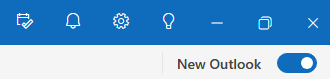
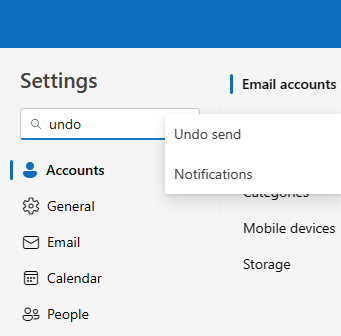
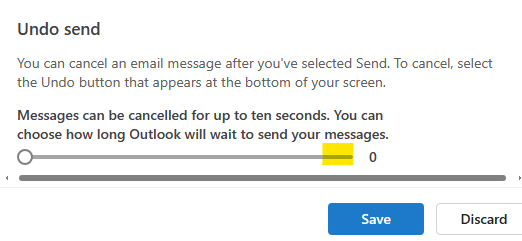
Next time you send a message Outlook will wait up to ten seconds before it will send your email and you will see an Undo button at the bottom of your window.

So no going on a panicky hunt for your message in your Sent Items folder or faffing around with an Outbox.
By the way, when you change your setting you will also get the Undo option when you delete an email...

... or accidentally drag an email to the wrong folder:

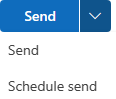
Bonus tip: If you want to schedule your email to be sent at your preferred date and time ... that's another great improvement in new Outlook, because of two reasons: 1. It's in a more intuitive spot and 2. you can log off and it will still send the message at the date and time you specified.
So what's next? The new Outlook app will eventually replace the Classic version. Microsoft wants to address "major feedback and feature gaps" and promises to give at least 1 year's notice before they shut it down completely. So check it out and if there are features that you feel should be added, let Microsoft know! There are various ways to give feedback. Here are two:
Related tips
Last month's posts on LinkedIn (newest first)
K.
PS When you're ready, here's how I can help you or your colleagues: from 1-hour webinars and one-to-one IT coaching sessions to onsite training and conference talks. I guarantee you will discover hidden features to tackle your time-consuming and frustrating day-to-day tasks in Word, Excel, PowerPoint and Outlook!
*
Unless stated otherwise this tip is written for Microsoft 365 desktop apps and Windows 10 users, but might also be useful in Office 2010, 2013, 2016 and 2019.
I’m committed to sharing the best of what I know with others so please don’t keep me a secret. If you enjoyed today’s tip, please forward it to anyone you feel may benefit. Alternatively, feel free to reprint it (with full copyright and subscription information) in your newsletters and message boards.
